
Add To Response (Fixed)
Overview
Add To Response (Fixed) adds static key-value pairs to the flow's response payload. These values are configured at design time and returned when the flow completes. Use this stage to attach metadata, status flags, or contextual data to the final response.
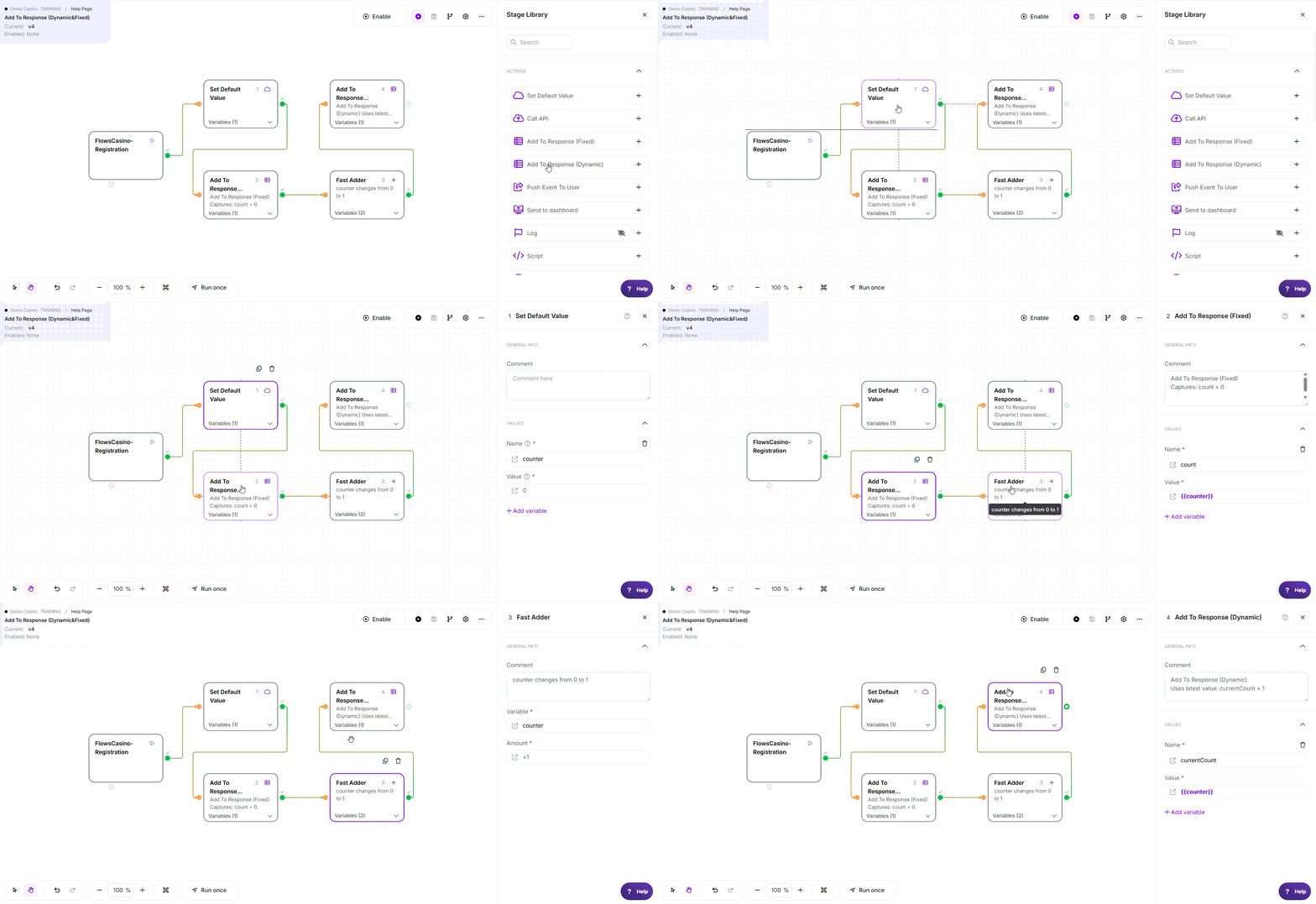
* This example demonstrates how Add To Response (Fixed) captures the value of a variable when the stage executes. Although counter changes later in the flow, the response keeps the original captured value (count = 0).
Note: The variable names, values, criteria, and configuration used in this example are for demonstration purposes only.
Where to find it: Actions in the stage library.
Configuration
Required Fields
| Field | Description | Example |
|---|---|---|
| Name (Response Key) | Key name in response (plain text, no {{}}) | status, userId, totalAmount |
| Value (Response Value) | Value to include (static text, variable reference, or formula) | success, {{userId}}, ={{price}} * 1.1 |
How values are typed: a value is stored as text unless you either set the field to a number type or start the value with =. There is no automatic number detection, so 42 typed as a normal value is returned as the text "42", not the number 42. To return it as a number, set the field type to number, or use a formula (=42).
Formula syntax: a value starting with = is calculated. Wrap each variable in braces and keep the math outside the braces: ={{price}} * 1.1 is correct; ={{price * 1.1}} does not work.
Using functions in these fields: Any value field above accepts @ functions, for example @NowSecond for the current time or @calc(...) for a calculation.
See Flows Functions for the full list.
Value Types
| Value Type | Handling | Example |
|---|---|---|
| Static Text | Added as-is | success, completed |
| Number | Returned as a number only if the field is set to number type or the value starts with =; a plain 42 is returned as text | =42, =99.99 |
| Variable Reference | Resolved and included (as text) | {{userId}}, {{timestamp}} |
| Formula Expression | Evaluated and result included (math outside the braces) | ={{price}} * 1.1, ={{total}} / {{count}} |
Exit Points
| Exit | When |
|---|---|
| Pass | Always (stage cannot fail) |
How It Works
When executed, the stage:
- Processes each key-value pair - Iterates through configured Values
- Resolves values - Evaluates variables, formulas, or uses static values
- Applies the value type - Text by default; a number only when the field is set to number type or the value starts with
=(no automatic number detection) - Adds to response - Non-destructively adds fields to response payload
Key behavior: Non-destructive - adds to response without removing existing fields. Multiple Add To Response stages can be used to build response incrementally.
Common Use Cases
1. Add Status and Metadata
Include standard response metadata.
Configuration:
status→successtimestamp→@NowSecondversion→1.0userId→{{userId}}
Response:
{ "status": "success", "timestamp": "1704067200000", "version": "1.0", "userId": "user_123" }
2. Computed Values in Response
Include calculated values using formulas.
Configuration:
totalAmount→{{amount}}taxAmount→={{amount}} * 0.1netAmount→={{amount}} * 0.9processed→true
Response:
{ "totalAmount": 100.00, "taxAmount": 10.00, "netAmount": 90.00, "processed": true }
3. Multi-Stage Response Building
Build response incrementally across multiple stages.
Stage 1:
result→successprocessedAt→{{timestamp}}
Stage 2:
itemCount→{{count}}averagePrice→={{totalPrice}} / {{count}}
Result: Final response combines all fields from both stages.
4. Conditional Metadata
Add different fields based on conditions using Route Flow.
Pass branch:
status→completedduration→{{elapsed}}success→true
Fail branch:
status→failederror→{{errorMessage}}
Key Behaviors
| Feature | Behavior |
|---|---|
| Non-Destructive | ✓ Adds to response without removing existing fields |
| Multiple Stages | ✓ Can use multiple stages to build response incrementally |
| Value type | Text by default; a number only when the field is number type or the value starts with = (no auto number detection) |
| Formula Support | ✓ Values starting with = are evaluated (keep math outside the braces: ={{a}} * 2) |
| Variable Resolution | ✓ {{variable}} syntax resolved from flow dictionary |
| Always Succeeds | ✓ No error exit - stage cannot fail |
Best Practices
- ✓ Organize response fields logically (status first, then data, then metadata)
- ✓ Use consistent naming conventions (camelCase recommended)
- ✓ Include traceability information (requestId, timestamp, version)
- ✓ Use formulas for calculations instead of pre-calculating
- ✓ Place at end of flow to ensure all variables are available
- ✓ Use multiple stages to organize different response sections
- ✓ Test response structure to verify all expected fields present
Common Mistakes
| Mistake | Symptom | Fix |
|---|---|---|
| Using {{}} in key names | Key name incorrect in response | Keys are plain text: userId not {{userId}} |
| Forgetting = for formulas | Formula treated as text instead of being evaluated | Start formulas with = and keep math outside the braces: ={{price}} * {{qty}} |
| Uninitialized variable references | Empty or null values in response | Use Set Default Value to initialize variables first |
| Duplicate keys | Only last value appears in response | Use unique key names; last value overwrites |
| Number returned as text | A plain 42 is stored as text (no auto number detection) | Set the field to number type, or use a formula: =42 |
Troubleshooting
| Issue | Common Cause | Fix |
|---|---|---|
| Field missing from response | Variable doesn't exist or is uninitialized | Initialize variable with Set Default Value before Add To Response |
| Formula not evaluating | Missing = prefix | Start with =: ={{expression}} |
| Value is wrong type | Number typed as a plain value comes back as text | Set the field to number type, or use a formula: =42 |
| Duplicate keys overwriting | Same key used multiple times | Use unique key names or combine in single stage |
| Empty response | Add To Response not connected or executed | Verify stage is on execution path before Return |
Do's and Don'ts
Do:
- ✓ Use for static response metadata and fixed fields
- ✓ Use variable references for dynamic values:
{{userId}} - ✓ Use formulas for computed values:
={{total}} * 0.1 - ✓ Include request ID, timestamp, or version in response
- ✓ Place at end of flow before returning result
Don't:
- ✗ Use {{}} in key names (plain text keys only)
- ✗ Forget = prefix for formulas
- ✗ Expect dynamic values to update mid-flow (fixed at execution time)
- ✗ Use when values need to be conditional (use Route Flow first)
- ✗ Forget to initialize variables before referencing
Edge Cases
- Numeric strings vs numbers: a plain
42is stored as text; use=42or a number-type field to return an actual number - Null values: Uninitialized variable references stored as empty string
- Duplicate keys: Last value wins if same key added multiple times
- Empty value: Empty string included in response (distinguishable from null)
- Formula errors: Errors logged but don't fail stage; field added with error message
Related Stages
- Add To Response (Dynimic): Capture response values when the stage runs.
- Return True: Return a successful completion result.
- Return False: Return a false completion result.
- Change Data: Update variables before the response is generated.
- Set Default Value: Initialize optional variables before using them.