
Live Dashboards & Datasets
Overview
Datasets and Dashboards let you turn data from your flows into live, visual reports — without needing a separate analytics tool. Build a dataset to define what data you want to track, connect it to one or more flows using the Send to dashboard stage, and see it visualized on a dashboard as it happens.
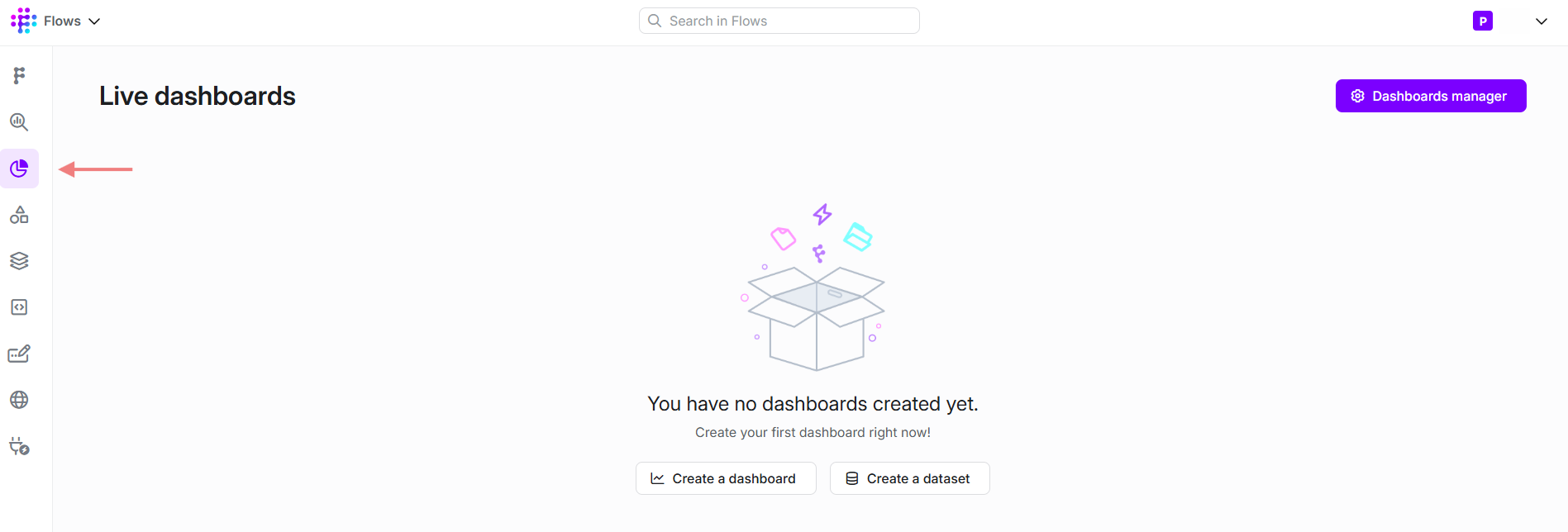
Where to find it: Click the dashboard icon (pie chart) in the left sidebar to open Live Dashboards.
What is a Dataset?
A dataset is a data table you define — a set of named fields (columns) with a type (String, Number, or Date) — that your flows write rows into over time. Think of it as a spreadsheet that your flows keep filling in automatically as things happen (a deposit, a completed tournament, a jackpot win).
Datasets are stored in Flows' analytics database and are what your dashboard charts actually read from.
What is a Dashboard?
A dashboard is the visual report built on top of one or more datasets — this can include charts, filterable data tables, and metrics that update as new data arrives. A single dashboard can have multiple tabs (for example, separate tabs for different reports like a "VIP Segmentation Report" or a "Monthly Report"), each with its own filters (by brand, date, tag, and so on). Dashboards are built by the Flows team according to your specification; you provide the data (via datasets) and tell us what you'd like to see, and we build the visual layout for you.
Note: Clicking "Create a dashboard" creates an empty dashboard shell with just a name — the actual chart/report design inside it is set up by your account manager based on what you want to track. Reach out to your account manager to request a new dashboard or changes to an existing one.
Creating a Dataset
- Open Live Dashboards from the sidebar.
- Click Create a dataset (or go to Dashboards Manager → Datasets if you already have datasets and want to add another).
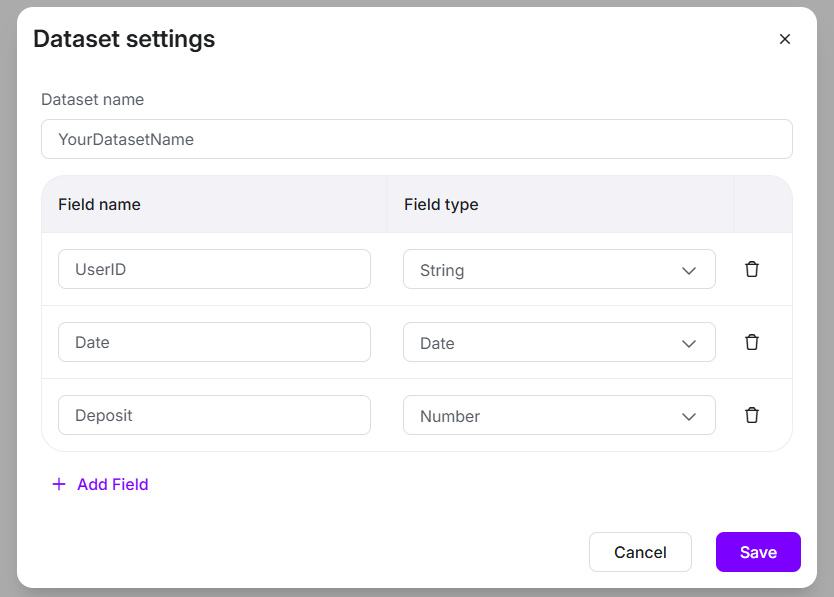
- In the Dataset settings panel:
- Enter a Dataset name.
- For each piece of data you want to track, click Add Field and give it a Field name and a Field type:
String,Number, orDate.
- Click Save.
Important: The field type you choose here must exactly match the type of data your flow will send. If even one field's data type doesn't match what's configured, the entire dashboard connected to this dataset can fail to display any data — not just that one field.
Sending Data to a Dataset from a Flow
Once a dataset exists, use the Send to dashboard stage in any flow to write a row into it.
| Field | Description |
|---|---|
| Record name | A unique identifier for the row. Using the same Record name on a later run updates that same row instead of creating a new one — this is how you give a dataset a primary/unique key (e.g. {{userId}} so each player has exactly one row, updated over time) |
| Dataset * (required) | Which dataset to write to — dropdown, populated from datasets you've already created. Supports a "Custom value" toggle if you need to set it dynamically |
| (one field per dataset column) | Once a dataset is selected, one input box appears for each field defined in that dataset — labeled with the exact field name (e.g. userId, affiliateId, depositAmount). Map each one to the flow variable or static value you want to send |
Example: a "PlayerActivity" dataset tracking deposit behaviour, with fields userId (String), affiliateId (String), depositAmount (Number), depositCount (Number), brand (String).
- Record name:
{{userId}} - Dataset:
PlayerActivity userId→{{userId}}affiliateId→{{affiliateId}}depositAmount→{{depositAmount}}depositCount→{{depositCount}}brand→YourBrandName(static value)
Every time this stage runs for the same player (userId), it updates that player's single row in the dataset rather than adding a duplicate.
Best Practices
- ✓ Decide on your dataset's unique key (Record Name) before sending any data — changing it later means old rows won't update, they'll just sit alongside new ones
- ✓ Match field types exactly (String/Number/Date) between the dataset definition and what your flow sends
- ✓ Keep a dataset focused on one type of event or entity (e.g. one dataset per tournament, not a mix of unrelated data) — this keeps dashboard charts simpler to build
- ✓ Talk to your account manager before building a new dataset if you're not sure what data it should contain — they can help you avoid rework
Troubleshooting
| Symptom | Likely Cause | Fix |
|---|---|---|
| Dashboard shows no data at all | One or more field types don't match between the dataset and what the flow sends | Check every field's type in Dataset settings against the actual values your flow sends |
| New field added to an existing dataset doesn't show data | Known issue: adding a field to an existing dataset can fail to create it in the underlying storage, even though it appears correctly in the dataset settings UI | Contact support to confirm the field was created correctly on the data side |
| Duplicate rows instead of updates | Record Name wasn't set, or was different on each run | Set Record Name to a value that uniquely and consistently identifies the entity (e.g. an ID), not something that changes every run |
| Dataset fields don't appear in the Send to dashboard stage dropdown | Known past issue, since fixed — if this recurs, refresh the page or contact support | — |
| Dataset settings panel won't scroll with many fields | Known UI limitation | Reduce visible fields temporarily, or contact support if you're blocked |
Can I build the dashboard visuals myself? Not directly — dashboards are designed by the Flows team based on your requirements. You can create and manage the underlying datasets yourself at any time.
Can multiple datasets feed one dashboard? Yes — a dashboard can combine data from several datasets.
Is there a limit to how many dashboards I can have? Your contract includes a set number of dashboards; additional dashboards may incur an extra cost. Contact your account manager for details.
Do I need a separate dataset per flow, or can multiple flows write to the same dataset? Multiple flows can write to the same dataset, as long as they send data matching its defined fields and use Record Name consistently.